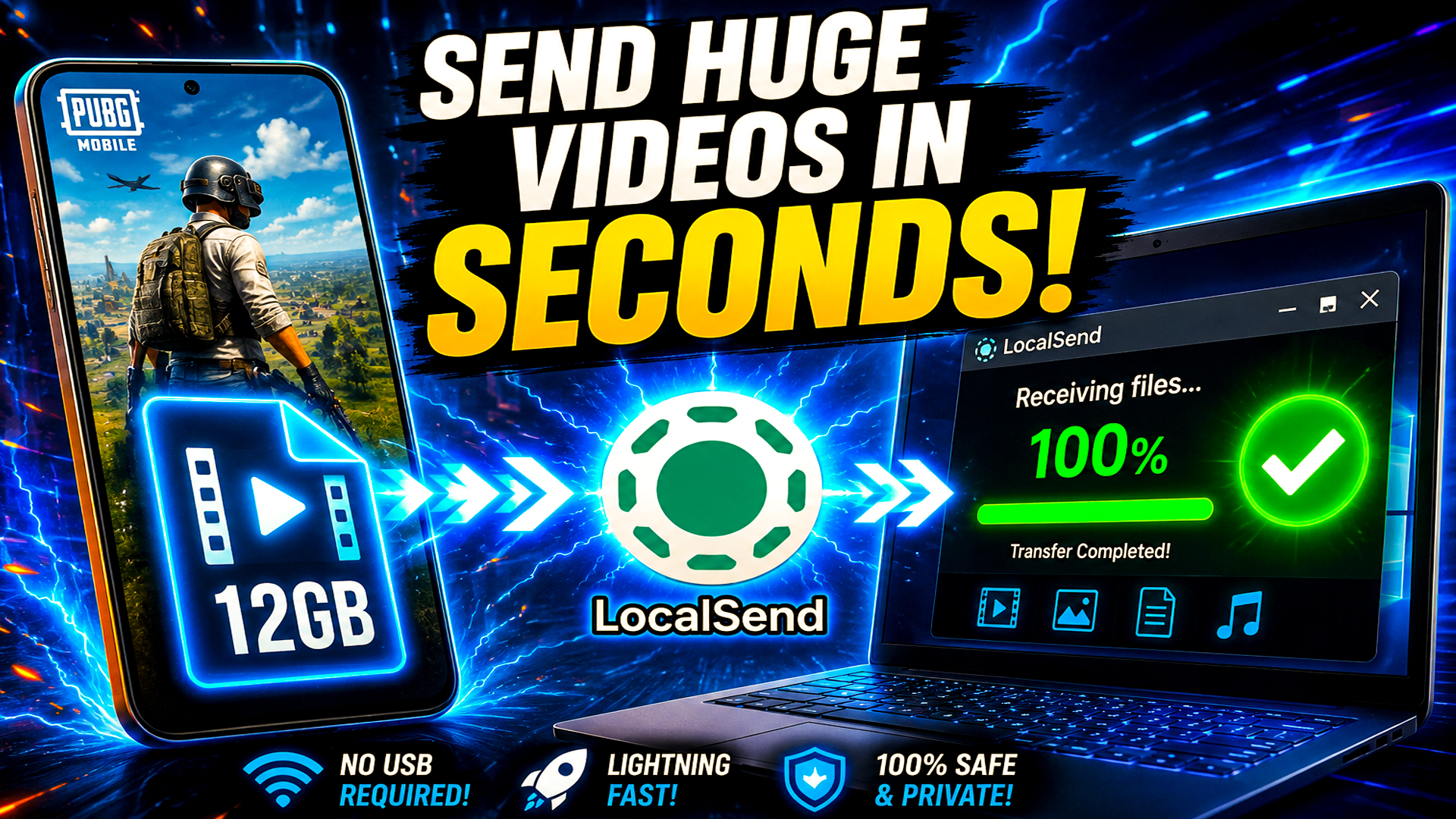
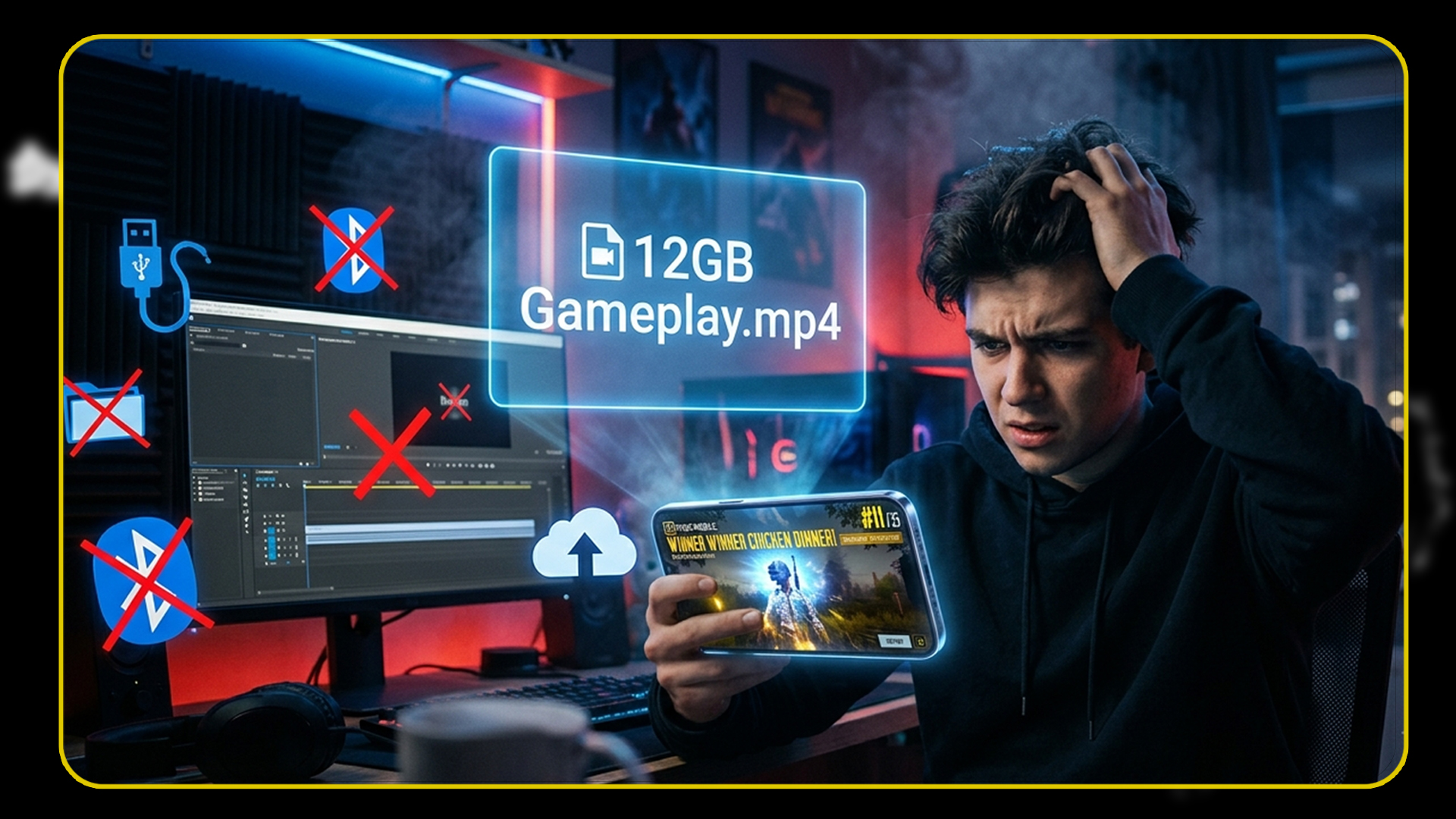
Have you ever recorded an insane PUBG Mobile match or an epic gaming moment on your phone, only to realize the video is way too big to send to your computer? Maybe you’ve tried using a USB cable, Bluetooth, WhatsApp, or even Google Drive, and it either takes forever, reduces the quality, or simply doesn’t work. Well, in today’s video I’m going to show you the fastest and easiest way to transfer huge gameplay videos from your Android phone, iPhone, iPad, or tablet directly to your Windows computer using a completely FREE app called LocalSend. The best part is that it takes just a few clicks and doesn’t take time to transfer your files. Let’s jump right in!
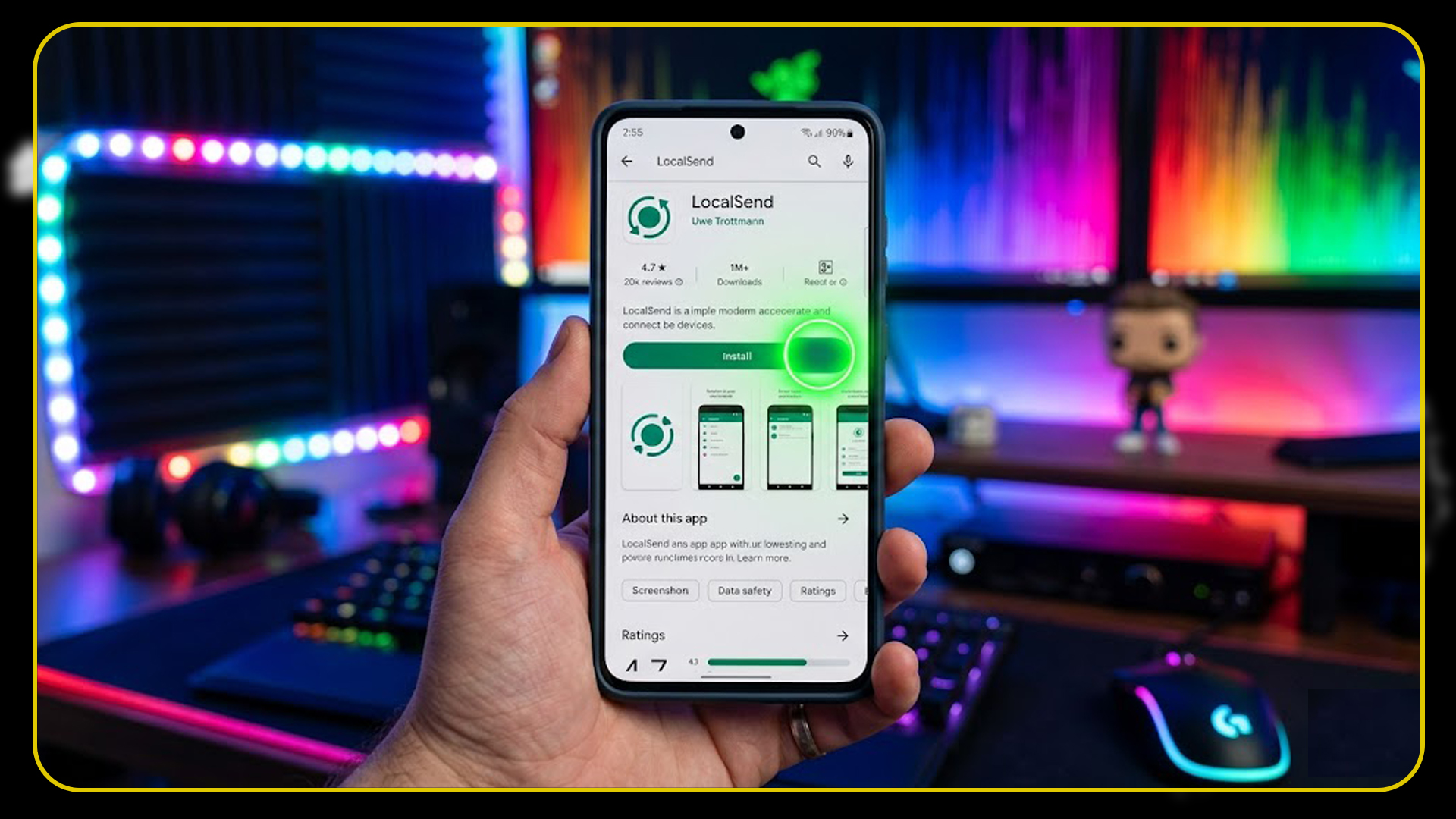
Next, move over to your computer. Open your favorite web browser I’m using Google Chrome, but any browser will work just fine. Search for LocalSend, open the official download page, and download the Windows version of the software. Once the download is complete, open your Downloads folder, double-click the installer, and follow the simple installation steps. After the installation finishes, launch LocalSend on your computer and leave it open.
Now pick up your phone again and open the LocalSend app. At the top, you’ll notice several options like Files, Media, and more. Since we’re transferring gameplay recordings, tap on Media. All of your recorded gameplay videos will appear on the screen. Select every gameplay clip you want to transfer to your computer, then tap Confirm. At the bottom of the app, you should see your Windows computer appear automatically. Simply tap on your computer’s name, and your gameplay videos will instantly begin transferring wirelessly.
As soon as you send the files, look at your computer. A pop-up notification will appear asking whether you want to receive the files. Click Accept, and the transfer will begin immediately. Depending on the size of your gameplay recordings and the speed of your Wi-Fi, it usually finishes surprisingly fast. Once every file has been transferred successfully, click Done, and you’re finished. Now let’s check where the files went. Open your Downloads folder on your Windows computer, and there they are! Every gameplay video has been transferred in its original quality and is now ready for editing, uploading to YouTube, or sharing with your friends. No USB cables, no cloud storage, no waiting for long uploads, and no loss in video quality. It’s honestly one of the easiest ways to move large gameplay files between your phone and your computer.
And that’s all there is to it! If this tutorial helped you save time and made transferring your gameplay videos easier, make sure to share this article and If you run into any problems or have any questions, leave them in the comments below and I’ll do my best to help you out. Thanks so much for your time , and I’ll see you in the one peace!
WATCH THE FULL VIDEO BELOW